Simplify Multi-Location Management on Facebook
Managing multiple store locations on Facebook can help your brand maintain consistency while giving each location a local voice. But to do that effectively, you need to know how to add admins or editors to each location page.
Here’s your quick and clear guide to setting it up the right way.
Why Add an Admin to a Store Location Page?
Adding an admin or editor allows:
- Local store managers to post location-specific updates
- Marketing teams to manage reviews or run ads
- Business owners to share access securely without giving full control of the main brand page
Before You Start
Make sure:
- You already have the Facebook Location structure set up (Parent Page + Store Locations)
- You’re an Admin of the main business page or Business Manager
- The person you’re adding has an active Facebook account
- The brand’s parent page does not have a physical address (this belongs on the child location pages)
Step-by-Step: Add an Admin via Business Manager
- Go to Meta Business Suite.
- Click All Tools → Store Locations.
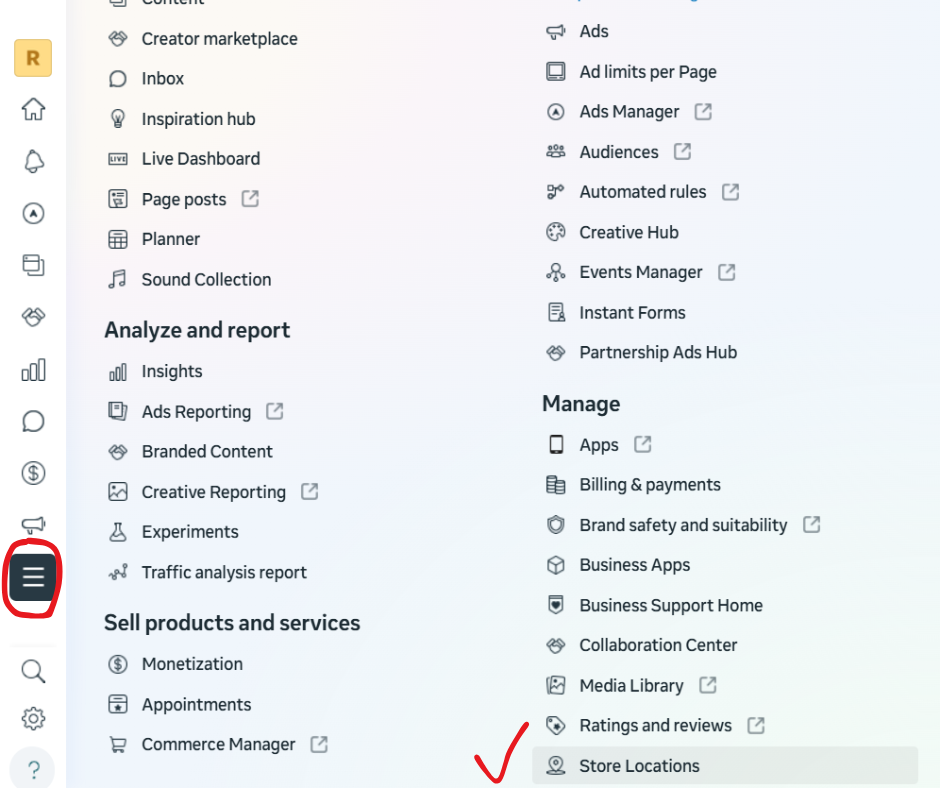
- Select the store location you want to manage.
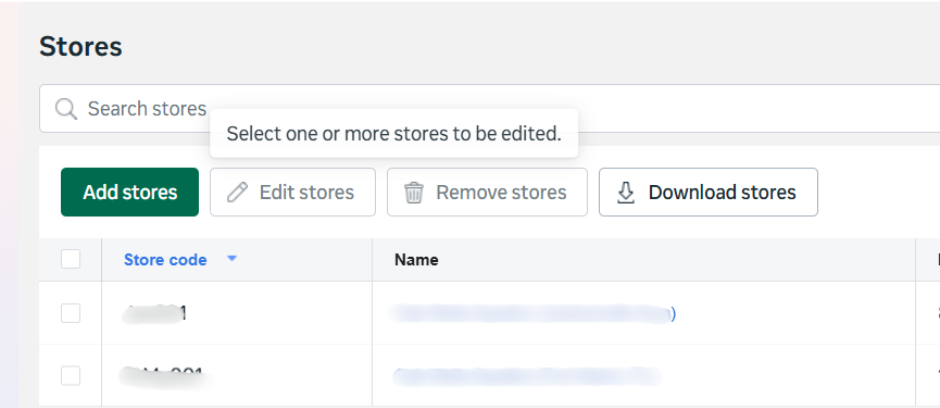
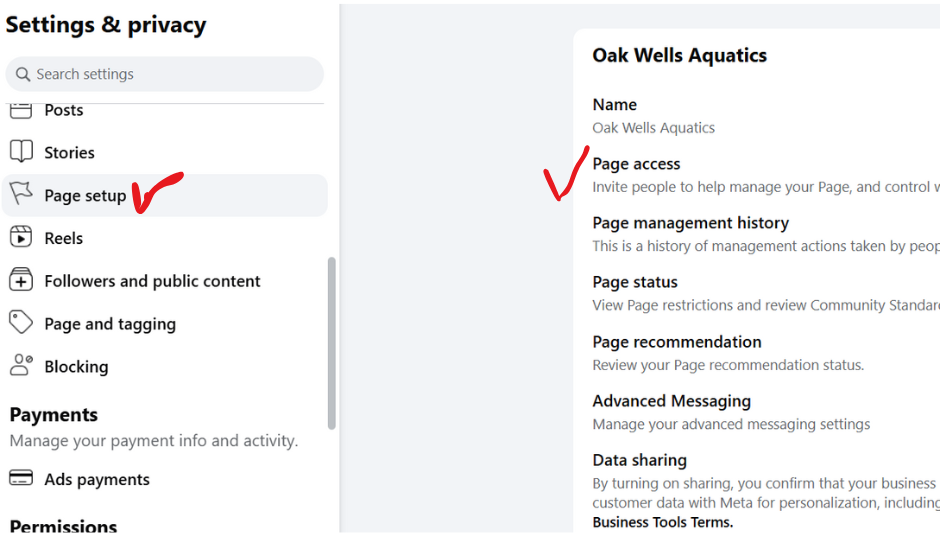
- Go to Settings → Page Setup → Page Access, click Add New.
- Enter their name or email, choose their role (Admin, Editor, etc.), and click Invite.
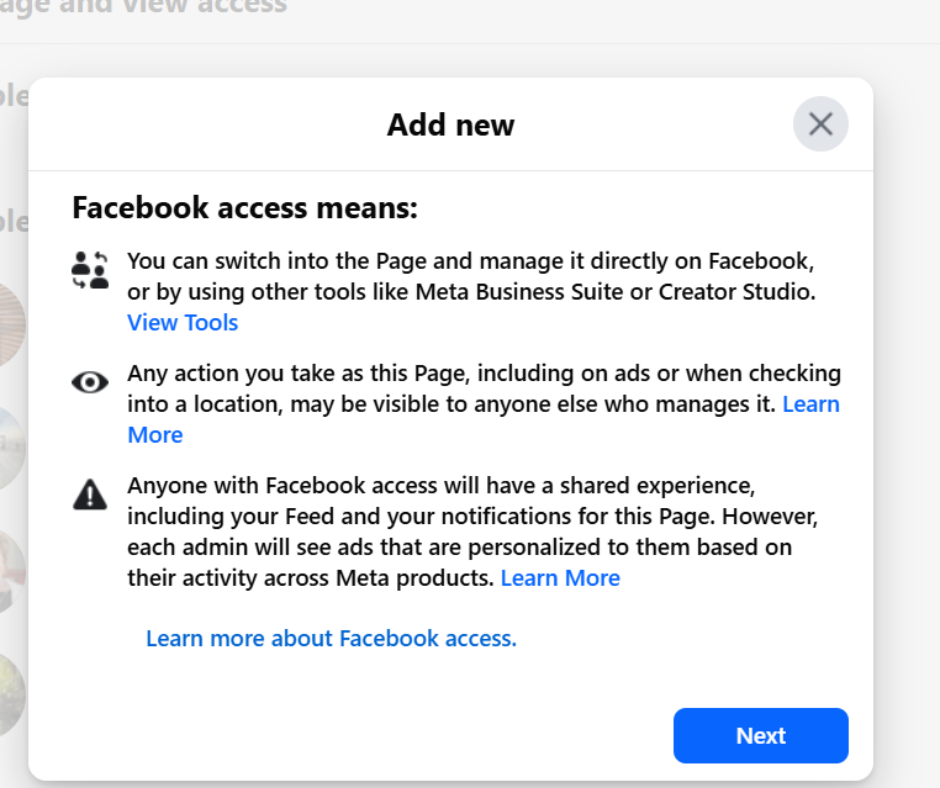
- They’ll receive a notification — once they accept, they’ll have access!
Alternative: Add Admins Directly from the Page
If you already have access to the store’s page:
- Go to the store’s Facebook Page via URL.
- Follow steps 4-6 above!
This is ideal for single-location businesses or simple setups.
Troubleshooting Common Issues
| Problem | Cause | Solution |
| Can’t find the “Locations” tab | Using new Page Experience | Try switching to Classic Pages or use Business Manager |
| Invite not appearing | User not using correct Facebook account | Ask them to log in with the same email you invited |
| Parent page shows address | Must remove address from parent | Go to parent Page Info and clear physical address |
Best Practices
✅ Use Editor access for most users (limit full Admin rights).
✅ Review user access quarterly.
✅ Maintain consistent naming like Brand – City for each location.
✅ Keep one team responsible for approving local content.
Final Thoughts
Adding an admin to a store location page helps you delegate effectively while protecting your brand integrity. Whether you’re running a franchise or managing several local stores, this setup makes managing your Facebook presence seamless and secure.
If you need help setting up Facebook Business Manager, Location structures, or streamlining multi-location digital strategy — Callan Group Communications can help.
👉 Contact us today to simplify your social media management.